
Master Your Eufy Cam 3 Setup: A Comprehensive Guide!
Our everyday life in the modern world may imply a greater concern about personal and property safety. To meet this changing demand, the high-end Eufy Cam 3 is one of the strongest responses, providing smart protection and security. Consequently, this extensive Eufy Cam 3 Setup guide will make bringing this advanced camera home a seamless process
Moreover, we guide you through all the stages, from unboxing to app synchronization, allowing you to instantly unleash its surveillance potential. So, enjoy total peace of mind and safeguard what really matters by having your Eufycam S330 up and running today.
Eufy Cam 3 Setup: Essential Considerations!
To begin with, the Eufy S330 camera setup is not just plugging in and connecting the devices. Instead, it requires attention to deliver the best performance, security, and user experience. However, you must consider several factors while setting up your security camera to improve and achieve unparalleled security. Here are some of them:
- An EufyCam S330 camera unit
- Home Base3 (S380)
- A Reliable Internet Connection (2.4 GHz)
- Eufy Security App
- A Compatible Smartphone
- Correct WiFi SSID and Password
- A compatible power adapter & cables
- Sufficient power supply
- Mounting hardware, etc.
Once you have all these things in hand, you must move ahead with the Eufy Cam 3 Setup. To know the complete instructions for setting up your security device at home, jump into the next section.
How to Set Up the Eufy S330 Camera Effortlessly?
Indeed, the Eufy Cam 3 Setup is more than making connections. Most importantly, proper planning is necessary to effectively realize the full capabilities of your device in terms of performance, security, and a pleasing user experience. Therefore, in this section, we will shed light on the step-by-step process of setting up your Eufy security camera:
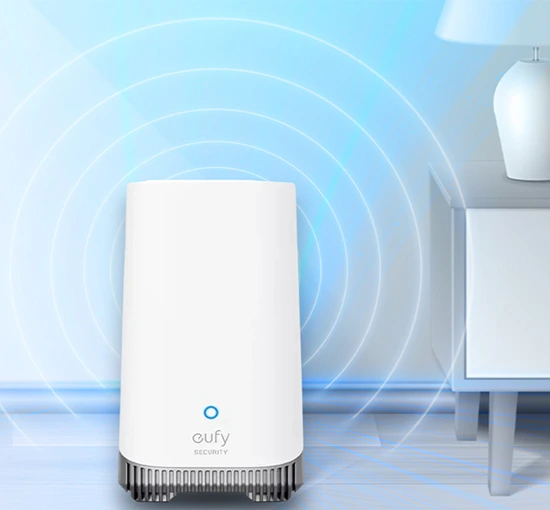
Home Base Connectivity
- First, unbox your camera, the base station, and other accessories.
- Now, insert the HomeBase 3 (S380) and plug it into a router with an Ethernet cable.
- Wait for one minute until the LED turns a solid blue color.
- After that, connect your camera to the power supply via the power adapter.
- Next, install and open the Eufy Security app on your phone.
- Then, log in or register your account in case it is your first encounter with this app.
- Further, click on the Add Device line with the icon of addition (+) and choose S330.
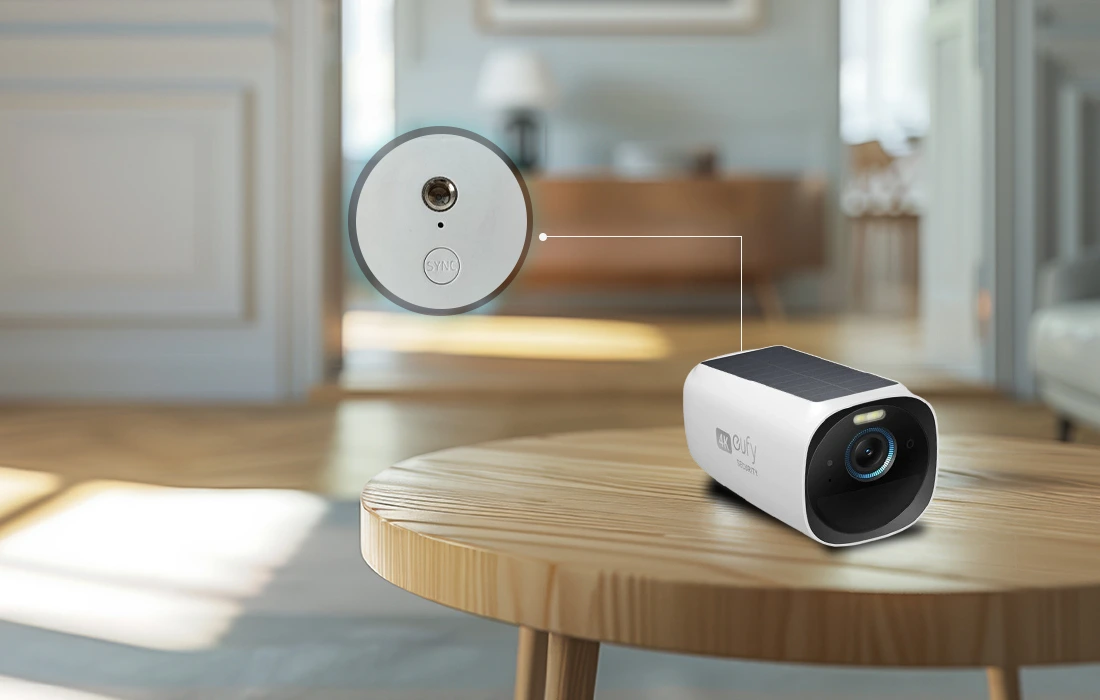
- Turn on the power to the S330 camera, press Sync until you hear a beep or an LED is flashing red or blue.
- At this point, scan the QR code given underneath the homebase to connect it.
- Now, you will receive a pairing request, so press the “SYNC” button on the homebase.
- Hereon, name your device, and follow the app instructions.
Connecting Your Camera
- Go back to the Devices>Add Device and select the EufyCam S330 camera.
- Further, press and hold the SYNC button to pair it with the base station.
- When you hear a beep, your camera will be connected to the base station
- Now, connect the camera to your Wi-Fi network of 2.4 GHz frequency.
- Lastly, give your device a name, follow the app instructions, and place it at a preferred location.
- Then test the video stream to make sure that everything goes fine.
- Finally, the Eufy Camera Setup is completed.
Note: You can enable motion detection, sensitivity, camera modes, Alexa integration, etc., settings easily via the Eufy Security app.
Facing Issues with Your Eufycam S330? Here’s What You Need to Know!
Despite an effective Eufy Cam 3 Setup, there are instances when users will start experiencing technical glitches. The following table provides some helpful insight into the origin of these problems and their quick fixes. By following these solutions, you can get your EufyCam S330 back into working order fast.
Issue
Likely Cause
Recommended Solutions
Night Vision Mode Issues
- Incorrect app settings
- Firmware issues
- IR Sensors are not working or are getting obstructed
- Night vision is not enabled as “Auto”
- Excessive light or glare
- Open the Eufy app and enter the device settings, and set Night Vision to Auto.
- Then wipe the lens and IR region properly with a soft, dry cloth.
- Additionally, make a test in total darkness, interpreting whether IR activates.
- Lastly, you can update the firmware of your camera using the app.
Camera Offline Issue
- Poor/Unstable Wi-Fi signal
- Power fluctuations or loose connections
- HomeBase is out of sync
- Incompatible or outdated firmware of the devices.
- First, place the camera and the router or HomeBase closer.
- Next, check the power supply and cables to see whether they are secure or not.
- Most importantly, reboot the HomeBase and the camera.
- Finally, update the firmware and verify the firmware version & compatibility.
Alexa Integration Problems
- Disabled Eufy Security Skill in Alexa App
- Alexa cannot detect the camera
- Incorrect account or wrong login details
- Initially, open the Alexa app and turn off the Eufy Security Skill. After that, turn it on again
- Next, re-link the Eufy account.
- Subsequently, give voice prompts like “Alexa, discover devices” to resync the camera.
- Lastly, make sure your camera is online in the Eufy app.
Hence, by knowing the basic causes of these issues and applying the correct solutions offered, you can fix these problems in a couple of minutes.
Are you ready to control your own home? Finish your Eufy Cam 3 Setup to start seamless monitoring, with crystal-clear video and intelligent integration.
FAQs
Why is the Eufy S330 camera connecting to Alexa?
If your camera is not connecting to the Alexa, make sure the Eufy Security Skill is turned on in the Alexa app. Then, use the same account for Alexa as the Eufy one. Then, check your device compatibility with Alexa and try voice commands.
Does the Eufy Camera S330 support the 5GHz Wi-Fi band?
No, Eufy cameras only support 2.4 GHz Wi-Fi, which has a larger range and offers more connectivity during setup and maintenance.
Is it possible to install EufyS330 without the HomeBase 3?
No, the S330 requires a HomeBase 3 (S380) to set up and use. It is the center of connectivity, storage, and the use of AI features.
My camera is not connected to the HomeBase. What should I do now?
Ensure that the two gadgets are on, close by, and use the same network. Reboot them in case of failure of pairing, and try connecting again through the app.