
One-stop Eufy Dual Camera Bundle Homebase S380 Setup Manual You Need
Eufy cameras are relatively new, yet have outperformed the existing players in the camera surveillance market. These cameras are now increasingly preferred across households and commercial spaces alike. Eufy S380 offers HD video recording capabilities paired with features like motion detection, night vision, and to top it all, easy installation. If you recently purchased a new Eufy S380 Setup, learning about how to setup Eufy S380 cameras becomes essential. This page will walk you through the essential steps that constitute the Eufy Setup process.
Eufy S380 Setup with App- The Complete Process
The Eufy Camera S380 is a wireless arrangement that provides high-quality video footage, two-way audio communication, and advanced motion detection capabilities. It has a long battery life, is easy to install, and has a weatherproof design, making it suitable for both indoor and outdoor use.
Things you will need for Eufy cam Setup
To begin the Eufy setup process, make sure you have all the necessary equipment at hand. Here are some items you will need:
- Eufy Cam S380 camera(s)
- Eufy HomeBase (usually included with the camera)
- Ethernet cable (if you prefer a wired connection)
- Power adapter(s) for the HomeBase
- Mounting hardware (if you plan to mount the camera)
Preparing for the Eufy S380 Setup
Getting things done for your Eufy S380 camera is easy. You can follow a defined step-by-step process to start with the setup process starting with preparing the hardware. Here are some steps you can follow:
- Find a suitable location for your HomeBase, preferably near your Wi-Fi router.
- Connect the HomeBase to a power outlet using the provided power adapter.
- Connect the HomeBase to your router using the Ethernet cable (optional if you prefer a wireless connection).
Download the Eufy Security App
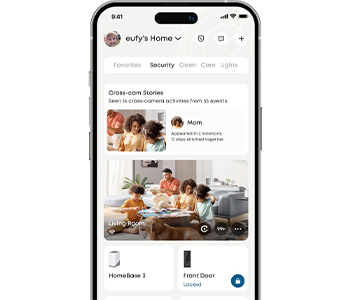
To proceed with the rest of the setup process, you will need to download the Eufy Security App from the Play Store or App Store. The app is compatible ith Android Ver 8 and above and iOS version 11 and above. If you already have the app with you, make sure it is on the latest version. If not, head to the device respective App/Play Store and get the same updated.
Once you have the app ready on your device, create a new account or proceed to login to your existing Eufy account. Follow the steps for the same:
- Open the app and click on the Create Account button. The app will now ask you to select the region where you belong to.
- Next, click on the Sign Up button at the lower right corner and type in an email address and a password to create the account.
- Create a password that has 8-20 characters and includes at least one uppercase letter, one lowercase letter, a number and a special character.
- Click on the Sign up button and from the next screen, authenticate the email address. Once the verification is done using the link in the email, you can log back in to the account you have created.
- Again, choose the region you are in and you will be redirected to the main app dashboard.
Eufy S380 Homebase WiFi Setup
- You can now add your homebase device to the app. From the device page, click on the + icon and then tap on the Add Device button. Here select the Homebase model you have at home and proceed.
- Choose an existing home profile if you have create one or you can create a new home profile from the menu.
- Simply follow the instructions on your app to add the Homebase to the app.
- Connect the Homebase to the LAN port on your WiFi router.
- Power on your Homebase now. If there’s a power button on the device, press the same to turn it on.
- Connect the smartphone with the app to the same WiFi router that your homebase is connected to. Wait for a minute until the homebase’s LED light turns from Red to Blue.
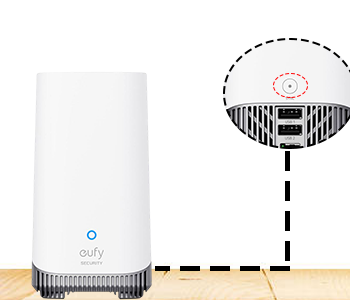
- Now, tap on the Next button and scan the QR code located at the bottom of the Homebase. You can also choose to add the serial number of the base to proceed to the next step.
- Once you hear a sound coming out of the homebase, press and hold the Sync/Alarm off button located at the bottom of the device for 2 seconds. After 2 seconds, you will hear a short beep sound.
- After a few moments, your homebase will be connected. This is when you can create a name for the Homebase to complete the Eufy S380 Setup process.
Eufy S380 Setup Manual- WPS method
To complete the Eufy S380 setup WPS method, you’ll need to ensure whether your camera supports the WPS function or not. WPS refers to WiFi Protected Setup and allows you to connect your devices with just a press of a button. Once you have ensured the same, here are some steps you can follow:
- Turn on the Homebase and hold down the Sync button on the base until you see the lights start to blink.
- Once that happens, press the WPS button on your wireless router. Wait for about 2 minutes and the devices will connect to each other. This connection is indicated through the WiFi indicator light turning solid.
- To complete the Eufy S380 setup, and configure the rest of the settings, you can proceed with the setup process on the app.
Eufy S380 Homebase WiFi Setup Not Working
Eufy cameras and the homebase rely increasingly on the internet connectivity to function optimally. Hence, if the WiFI setup is not working, see if you are using the correct password to connect to the same. See if your other devices are able to connect to the WiFi network or not. If the password has changed, you will need to use the new password to connect your homebase.
If you still face issues connecting the home base to the router, try the WPS connection method. In case the issues persist, you can see if the devices are located inside the network signal coverage area. When devices are located far away, weak signal issue may occur, preventing you from connecting the devices.
Finally, even when you have tried everything and the devices won’t connect, you can reset Eufy camera and homebase to start afresh. If the Eufy S380 Homebase WiFi Setup Not Working After Reset, you’ll need to power cycle the devices and wait for some time before trying the process again.
How to complete the Eufy S380 firmware update process?
Outdated firmware can cause compatibility issues and impact the performance of your Eufy camera. Check for firmware updates in the Eufy Security app or on the official Eufy website. If an update is available, follow the instructions provided to install it. Updating the firmware can address software bugs and improve overall camera performance.
You can follow these steps for Eufy S380 firmware update:
- Open the Eufy Security App And head to the Devices Tab
- Here, tap on the Settings(gear icon) and select general.
- Now, from the ‘About Device’ option, tap on the ‘Check for firmware update’ option.
If there’s a new update available, you can install it and allow the process to complete, before accessing the camera.
How to factory reset Eufy homebase S380?
To factory reset the Eufy Homebase S380, locate the reset button at the back. Once you have the location, unplug the device from the power and follow the steps:
- Use a paperclip to press and hold the small reset button. Do this for 10 seconds and the LED lights will start flashing red.
- Now, release the button and allow the camera to reset itself.
Need More help with Eufy S380 Setup Process?
Get help on Eufy Setup and Troubleshooting issues from our experts today!